

Aviation Is Changing. Your Training Should Too.
The cockpit of 2035 won’t look like the cockpit of 1955. Electric aircraft, automated systems, voice-enabled copilots—tomorrow’s pilots won’t just manipulate controls, they’ll manage intelligent systems and communicate naturally with AI.
Your students can start building those skills now.
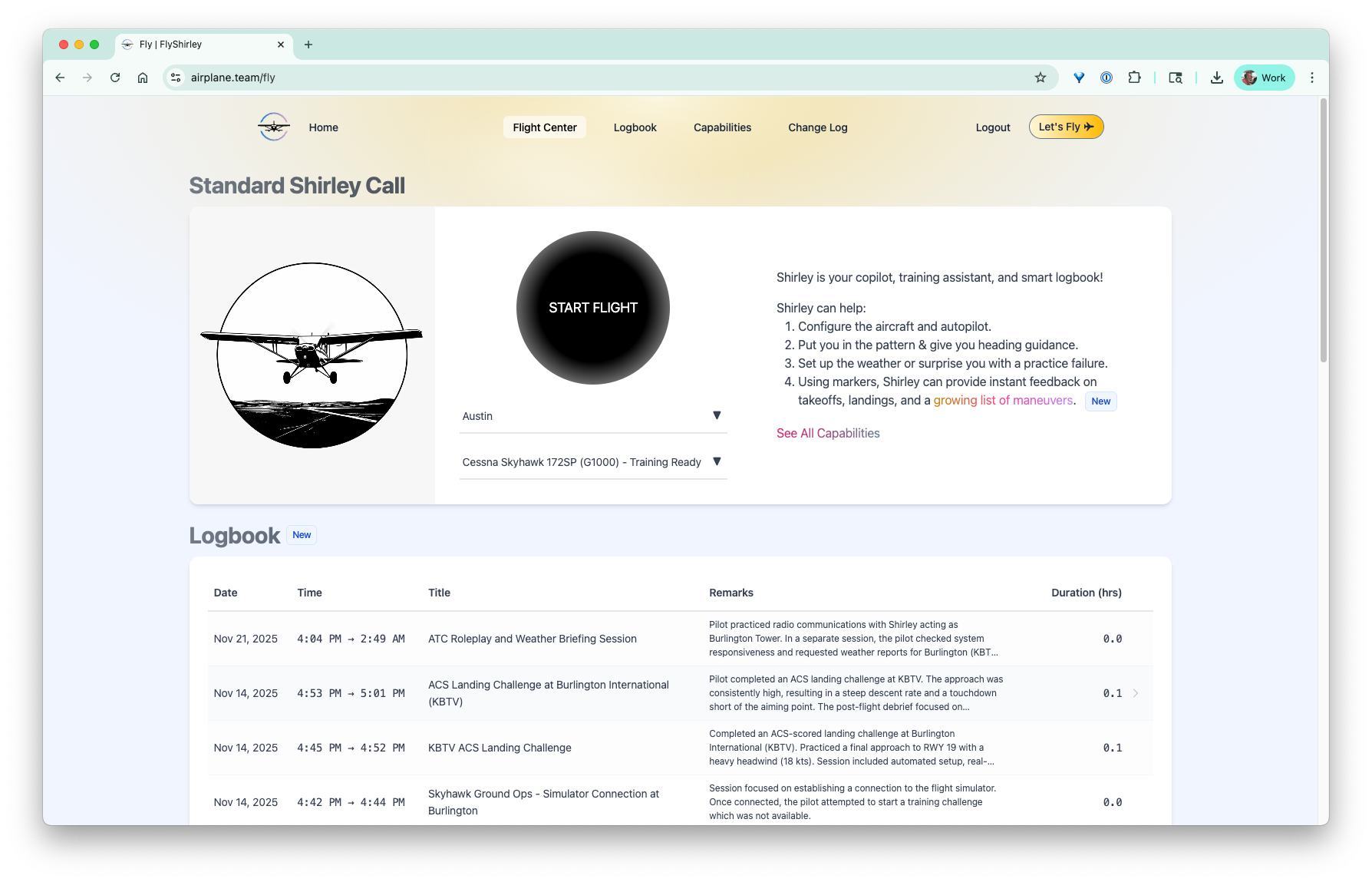
Shirley teaches your students to fly. Students don’t just practice maneuvers—they learn to work with an intelligent copilot talking with them, the same way they’ll fly professionally. And because Shirley scores every flight against actual FAA Airman Certification Standards, you can demonstrate exactly how your program is preparing students for real checkrides.
Train like tomorrow’s pilots will fly. Prove it with today’s standards.
What This Means for Your Sim Lab
For less than $30,000 you can build a world-class sim lab with 10 stations. You need:
Capable hardware — responsive controls, smooth frame rates
Quality software — realistic flight dynamics (X-Plane 12)
Intelligent instruction — AI coaching that adapts to each student
The first two are commodity. Off-the-shelf gear outperforms most “turnkey” packages at a fraction of the cost. The third is what actually differentiates your program.
Two Hardware Paths
The Essentials (~$2,135/station)
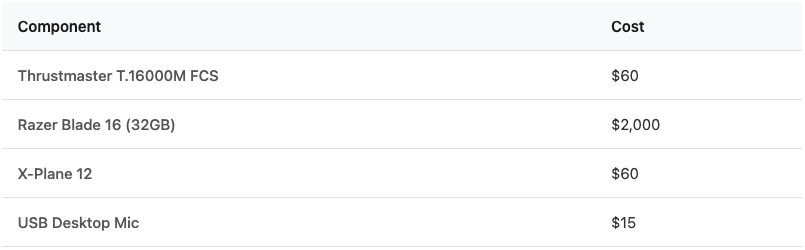
Everything a student needs to learn fundamentals with proper controls and a machine that won’t bottleneck their experience. If you’re not worried about VR in the future, your costs could be much less.
Cessna-Style Realism (~$2,650/station)
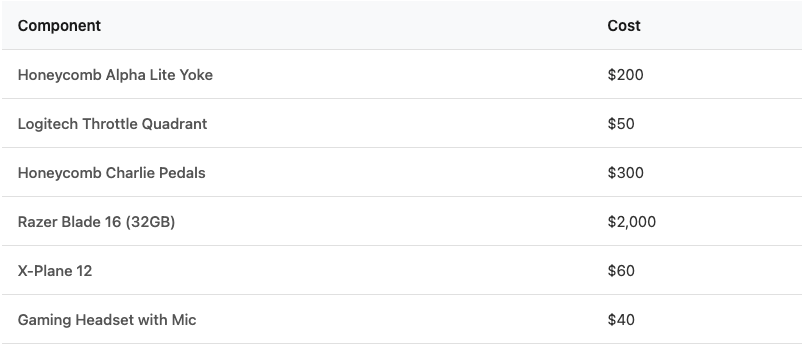
Controls that feel like what students will eventually fly. Proper rudder coordination from day one.
Why Laptops?
We recommend gaming laptops over desktops for most STEM labs:
Fewer cables, fewer fidgety bits — simpler setup, less to break
Built-in display — one less thing to buy, secure, and manage
Portability — bring stations to competitions, demos, or career fairs
Modern performance — vapor chamber cooling means today’s gaming laptops match desktop performance, drive multiple monitors, and offer a VR upgrade pathway
Security — Kensington lock slots let you cable them down
MnDOT ran their Oshkosh booth on laptops with Shirley and VR. Handled it beautifully.
If you prefer towers, an Alienware Aurora (~$1,500) will do the job—just budget for monitors and accessories.
Adding an External Monitor
A widescreen external monitor (~$210) is a great upgrade:
Pop out the G1000 — In X-Plane, click the avionics panel, press the window button, drag to your external display. Students get a dedicated instrument view.
Keep Shirley visible — instructor interface on one screen, outside view on the other
Widen your field of view — X-Plane lets you expand lateral FOV for better situational awareness
As mentioned before, you can also ultimately go the VR route.
But it’s not required to start. The laptop’s built-in display works great, and you can add monitors later as budget allows. No vendor lock-in means you upgrade on your timeline.
Add Shirley: Individualized Training That Proves ROI
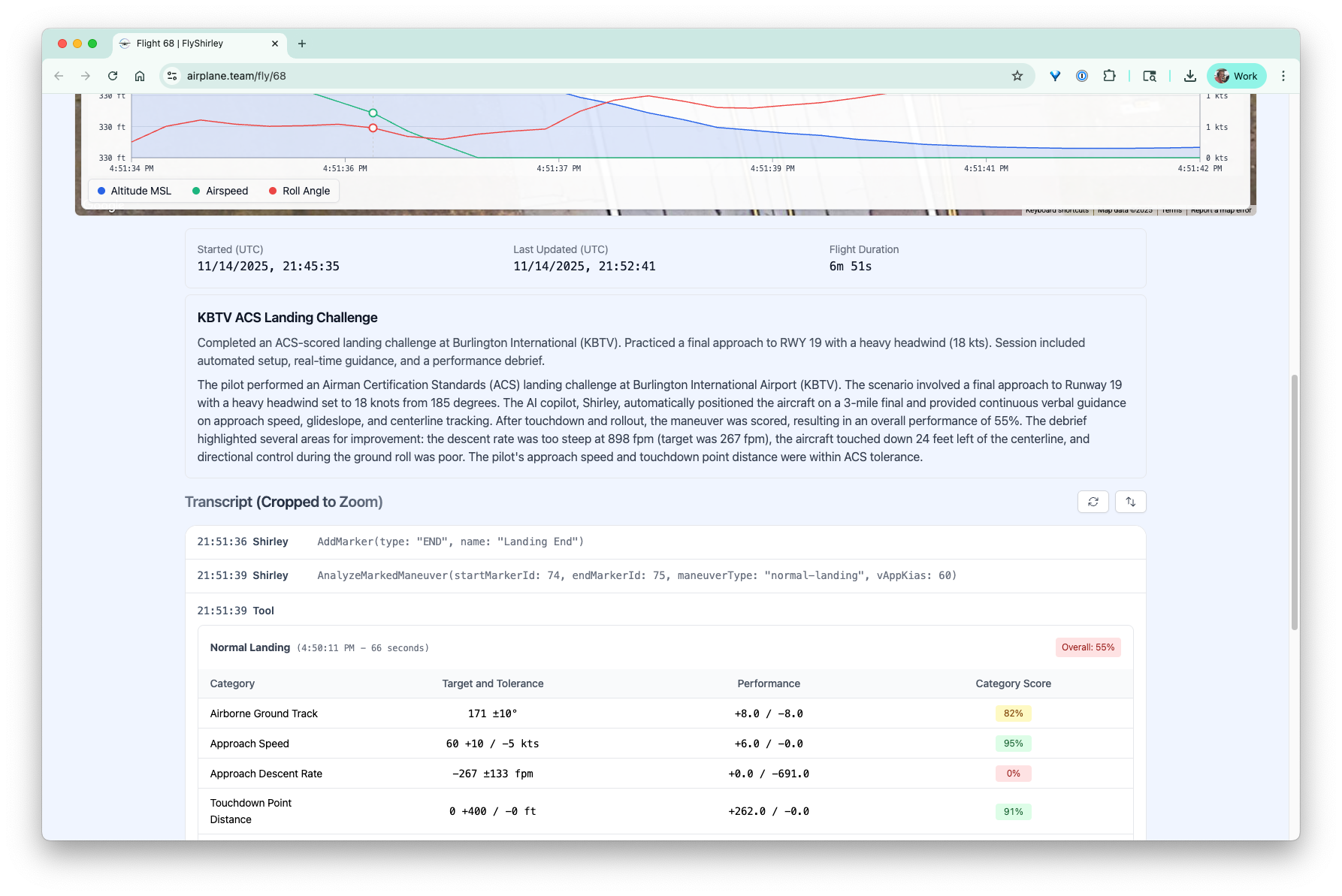
Every student gets their own account. Every flight is scored against FAA ACS standards. Progress is tracked over time—by student, by maneuver, by your whole program.
$10/student/month. $100 for a full instructional year.
Students can:
Practice at school during lab time
Continue at home as homework (ATC calls, procedures, ground school—no extra hardware needed)
See their own improvement over time
Get real-time coaching tailored to their skill level
When budget season comes around, you’ll have the data: “Here’s exactly how our students would perform on actual FAA practical exams.”
A 10-Station Lab: Three Ways
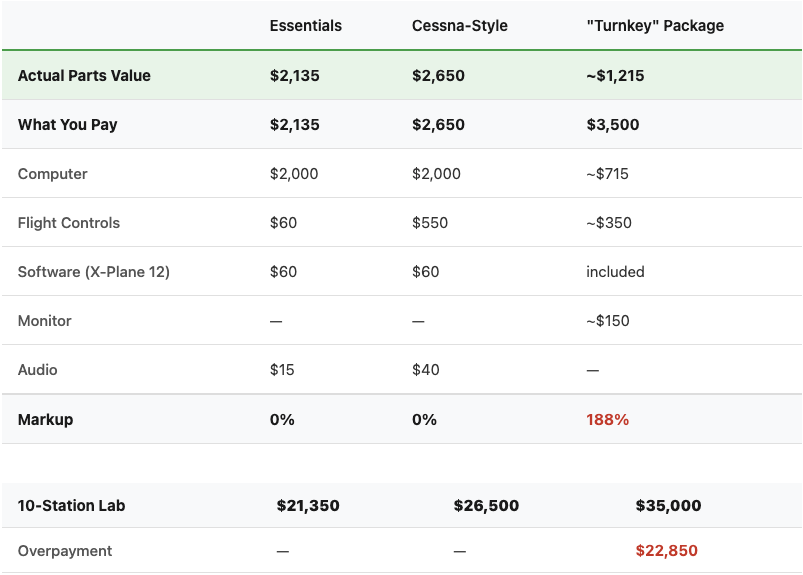
That $22,850 could fund scholarships, field trips, or actual flight hours for your top students.
And here’s the real kicker: the “budget” setups have *better specs* than “Turnkey” packages. 32GB RAM vs 8GB. Modern GPUs vs the GTX 1630. Vapor chamber cooling. Portability. And a clear upgrade path as AI and simulation technology evolves—no vendor lock-in.
The Full Picture: Hardware + Shirley
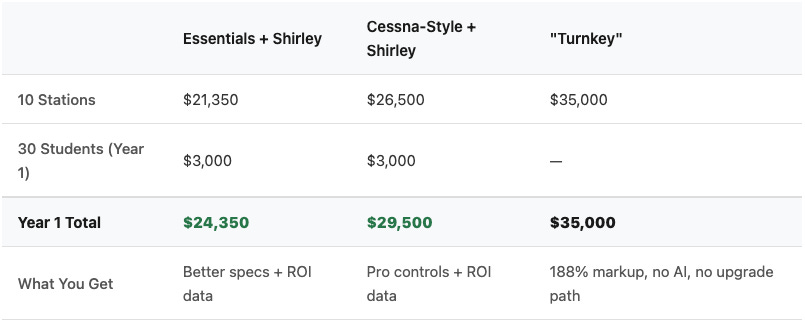
Note: We offer pre-purchase discounts that work flexibly with grants—let’s talk.
Quick Setup Tips
Don’t let anyone tell you that you need VR or triple monitors for students to learn VFR maneuvers. On an all-in-one stick:
Map “Glance left” / “Glance right” / “3D Cockpit (aka Reset View)” to thumb switches
Use trigger for Brakes
Use the slider as Throttle
Put Trim on base buttons
Shirley handles Flaps by voice command
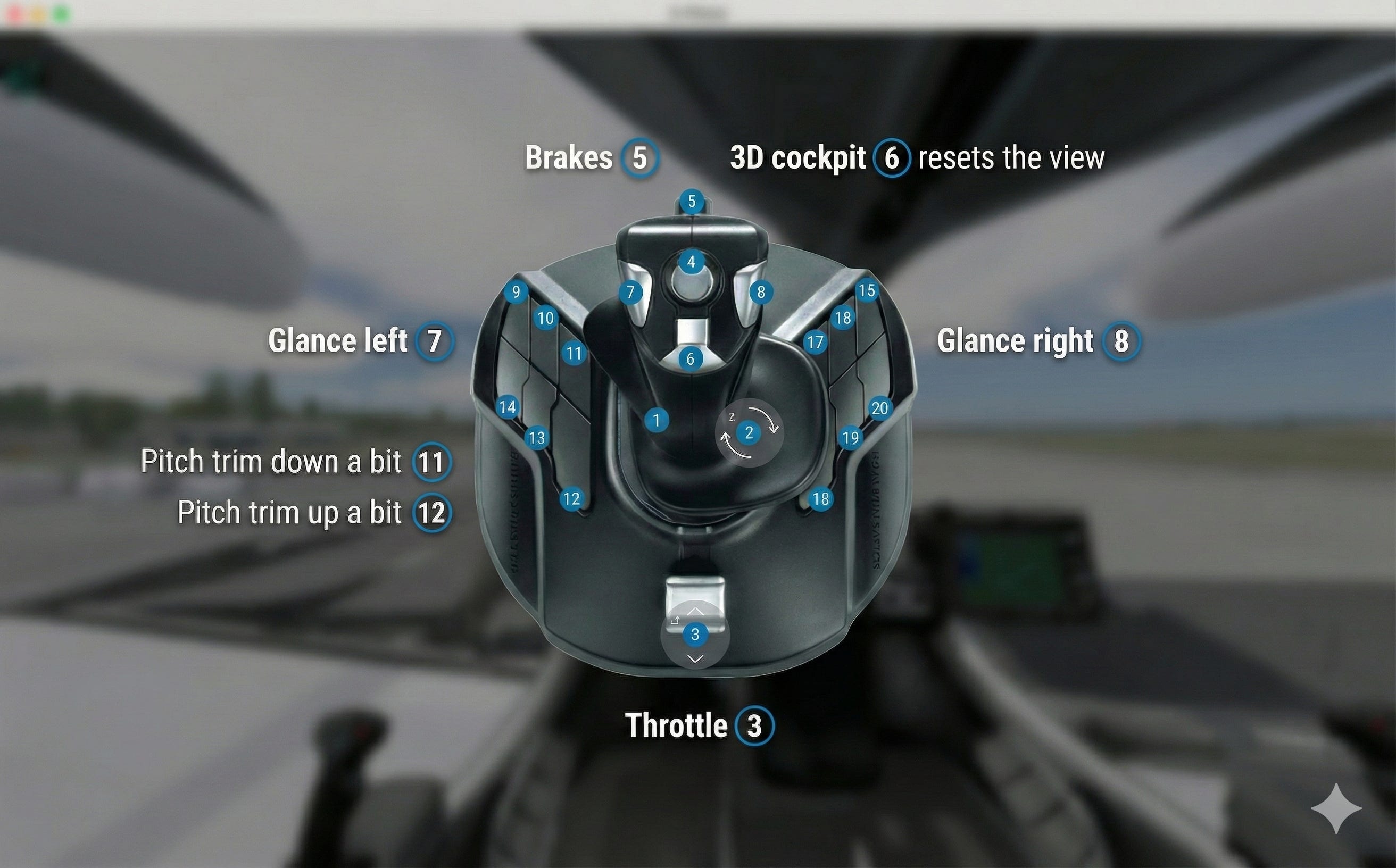
Simple, effective, and students focus on flying—not fiddling with hardware.
Recommended Gear
Flight Controls
Honeycomb Alpha Lite Yoke — $200
Computers
Razer Blade 16 (32GB) — $2,000 (our top pick, Kensington slot)
Razer Blade 18 — $3,100 (with larger display)
HP OMEN Gaming Laptop 16” — $1,200 (no Kensington slot and questionable for VR – but great price)
Alienware Aurora Desktop — $1,500 (if you prefer towers)
Software
X-Plane 12 — $60
Audio
USB Desktop Microphone — $15 (green/red mute indicator—great for classrooms)
Gaming Headset with Mic — $40
Displays
34” Acer Curved Monitor — $210
Tip: Starting with just a laptop display? You can overlay captions for Shirley using Google Chrome’s Built-In Live Captions feature.
Questions about outfitting your lab? We’ve supported STEM outreach for BETA Technologies and worked with programs from MnDOT to high school aviation academies. Schedule a call and we’ll walk through your specific setup.
We are expanding our sim lab with tower computers from X-Force PC. We purchased the "AMD Mainstream Performance System," which is VR-ready. What I like about the X-Force PCs is that they arrive without any bloatware, and Ken specifically tweaks the graphics drivers for X-Plane software.
Thanks Alex, the Razer Blade 16 looks very cool!